
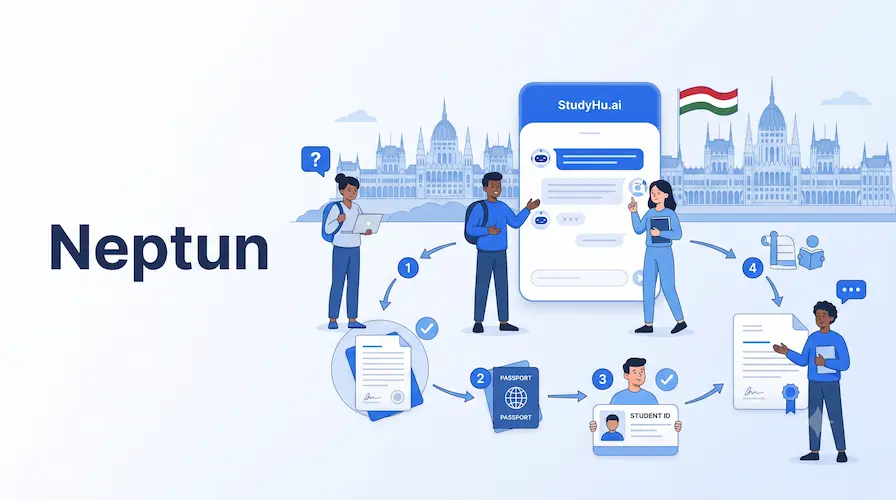
Understanding the Neptun System
Overview
- What it is: Neptun is the official central database used in Hungary to manage your personal, academic, and financial information. It is also where you manage the subjects and courses you study.
- Why it is important: All administrative tasks regarding your university studies must be completed in Neptun. You will use it to register for your semesters, sign up for subjects, register for exams, and receive official emails from your professors.
- Who needs it: Every international student studying in Hungary—including Stipendium Hungaricum, Erasmus, exchange, and self-funded students.

Step-by-Step Guide: Your First Login
Step 1: Open the Website and Change the Language
Go to your university’s Neptun login webpage. Look for the language options and switch the language to English.
Step 2: Enter Your Login Name
Your login name is your unique Neptun code (also known as your Student ID code). You can find this code in your official letter of acceptance.
Step 3: Enter Your Default Password
Your very first password follows a strict format. It must include the capital letter “N”, lowercase letter “e”, and your birthdate in the Hungarian order: YYYYMMDD.
- “Ne” is a mandatory prefix.
- “YYYY” is your 4-digit birth year.
- “MM” is your 2-digit birth month.
- “DD” is your 2-digit birth day.
Example: If you were born on January 25, 1995, your default password will be: Ne19950125
Step 4: Accept the Data Management Declaration
When you log in for the very first time, a pop-up window regarding data management will appear on your screen. You must tick the box and click Accept declaration to proceed.
What to Prepare & Tips
What to Prepare
- Your letter of acceptance (to find your Neptun code/Student ID).
- Your exact date of birth.
Tips
- Change your password: It is highly recommended to change your initial default password to a secure, private one immediately after your first successful login.
Common Mistakes
- Forgetting the prefix: Forgetting to type the “Ne” before your birthdate when logging in for the first time.
- Wrong date order: Putting the day or month first. Remember to use the Hungarian date format: Year + Month + Day.
Required Documents
This system does not require you to upload physical documents to log in. You only need:
- Letter of Acceptance: This is needed because it contains your unique Student ID code used as your login name. It is provided by your university before you arrive.
Fees
- Official Fee: This information is not available in the provided sources.
- Payment Methods: This information is not available in the provided sources.
- Possible Additional Costs: This information is not available in the provided sources.
Processing Time
- Average Waiting Time: Access is immediate once you enter your correct login details.
- Busy Seasons: This information is not available in the provided sources.
- Expedited Options: This information is not available in the provided sources.
Important Tips
- Check your Neptun account regularly. Professors use this platform to send crucial emails regarding your classes, grades, and schedules.
Common Mistakes
- Using the wrong language portal: Trying to log in on the Hungarian version of the page. Always make sure you switch the page language to English first so you can read the pop-up instructions clearly.
Frequently Asked Questions (FAQ)
Q: Where can I find my Neptun login name?
A: Your login name is the Neptun code/Student ID code sent to you in your official letter of acceptance.
Q: What is the default password format for my first login?
A: Your password is Ne followed by your birthdate in the format YYYYMMDD (e.g., Ne19950125). The “Ne” prefix is mandatory.
Q: What should I do if a window pops up during my first login?
A: A window about data management will pop up. You just need to check the box and accept the declaration to continue.
Q: Can I use Neptun to register for exams and classes?
A: Yes. All administrative tasks, including registering for semesters, subjects, and exams, are completed inside Neptun.
Q: Should I keep using my default password?
A: No, it is recommended that you change your initial password after logging in for the first time to secure your account.
References:
Leave a Reply